1. Home
  2. Website manual
  3. Post
  4. Editing post

Editing post

Click on “Dashboard Home Updates Site Kit Dashboard Settings Posts All Posts Add Post Categories Tags Me…”

Start urlhttps://proudlydeveloping.co.za/wp-admin/index.php

Tab Name: Dashboard ‹ Proudly Developing — WordPress

WordPress dashboard displaying site overview, sidebar menu, plugin notifications, and a welcome message with setup suggestions and customisation options. - Proudly Developing

2

Click on the link “Posts”

A WordPress dashboard displaying the sidebar menu with the “Posts” section expanded, showing options for All Posts, Add New, Categories, and Tags. - Proudly Developing

3

Click on “Screen Options Help Posts Add Post Introducing weDocs Pro — a completely revamped weDocs with bett…”

Tab Name: Posts ‹ Proudly Developing — WordPress
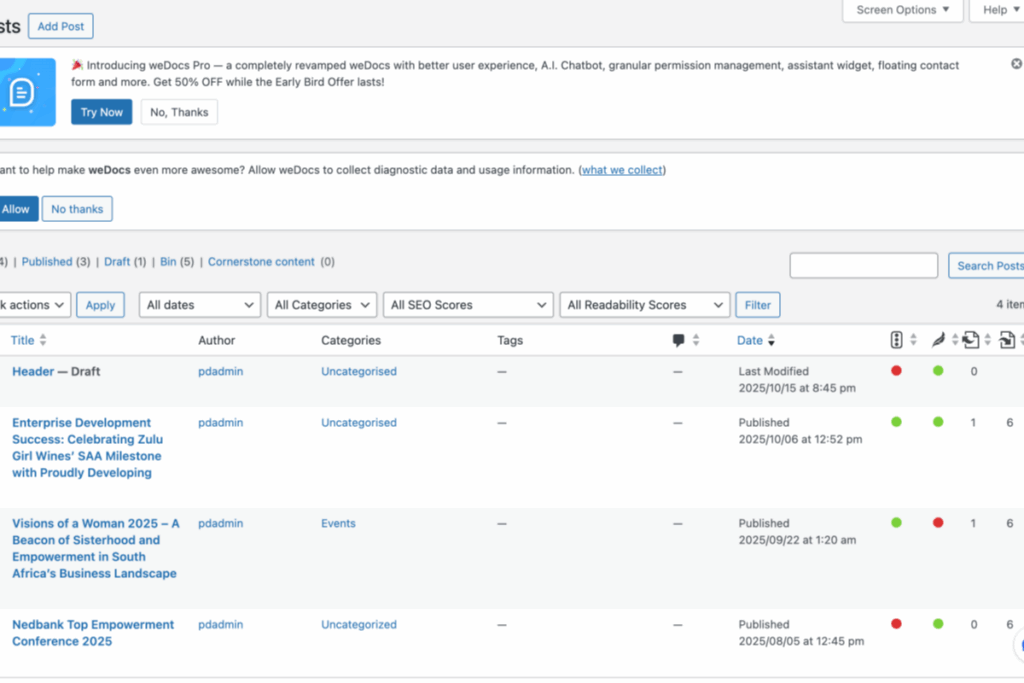
WordPress posts dashboard showing a list of published posts, their categories, tags, SEO, readability scores, author, and status indicators, with plugin update and feedback banners at the top. - Proudly Developing

4

Click on the button “Quick Edit”

WordPress admin dashboard showing the Posts section with a draft post selected and the “Quick Edit” link highlighted under the post title. - Proudly Developing

5

Click on the button “Cancel”

WordPress admin dashboard showing the “Posts” section with options to add, edit, and manage posts, categories, tags, and SEO settings. A new post is being added via the Quick Edit panel. - Proudly Developing

6

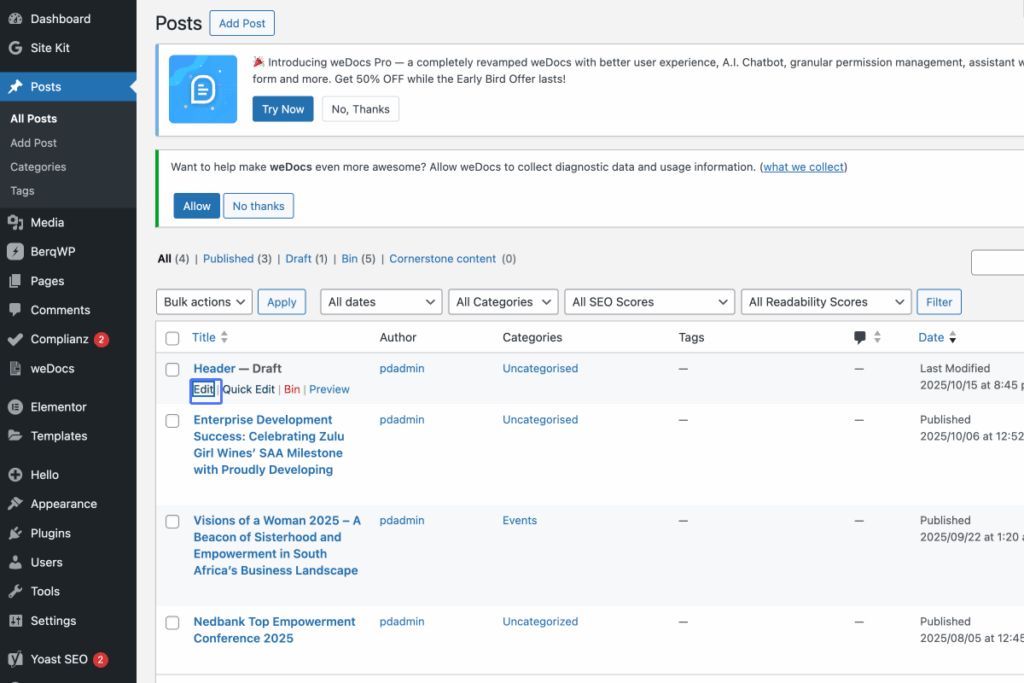
Click on the link “Edit”

WordPress dashboard view showing the Posts section with three posts listed, two published and one draft, alongside plugin notices and admin controls visible at the top. - Proudly Developing

7

Click on “Header Paragraph”

Tab Name: Edit Post “Header” ‹ Proudly Developing — WordPress

A WordPress post editor screen showing a blank post titled “Header” with SEO settings and editing options visible. - Proudly Developing

8

Click on “Save Draft Publish”

WordPress post editor screen with SEO, readability, and schema settings visible, plus options to save draft, preview, or publish the post. “Generate with Elementor AI” button is shown. - Proudly Developing

How can we help?